

Why Google Ads conversion tracking matters
To set up Google Ads conversion tracking, decide which actions matter to your business, such as purchases or lead forms. Create those conversion actions in Google Ads, choose the Google tag or a Google Analytics 4 import, configure their values and bidding settings, then test that each action records correctly. That gives you a clearer view of which ads drive results, not just clicks.
I’m Lindsey Huettner, owner of The it Crowd, with over 19 years of experience in marketing and business ownership. My work in paid media and digital strategy helps businesses use Google Ads conversion tracking to make better ad decisions.
Easy Google Ads conversion tracking word list:
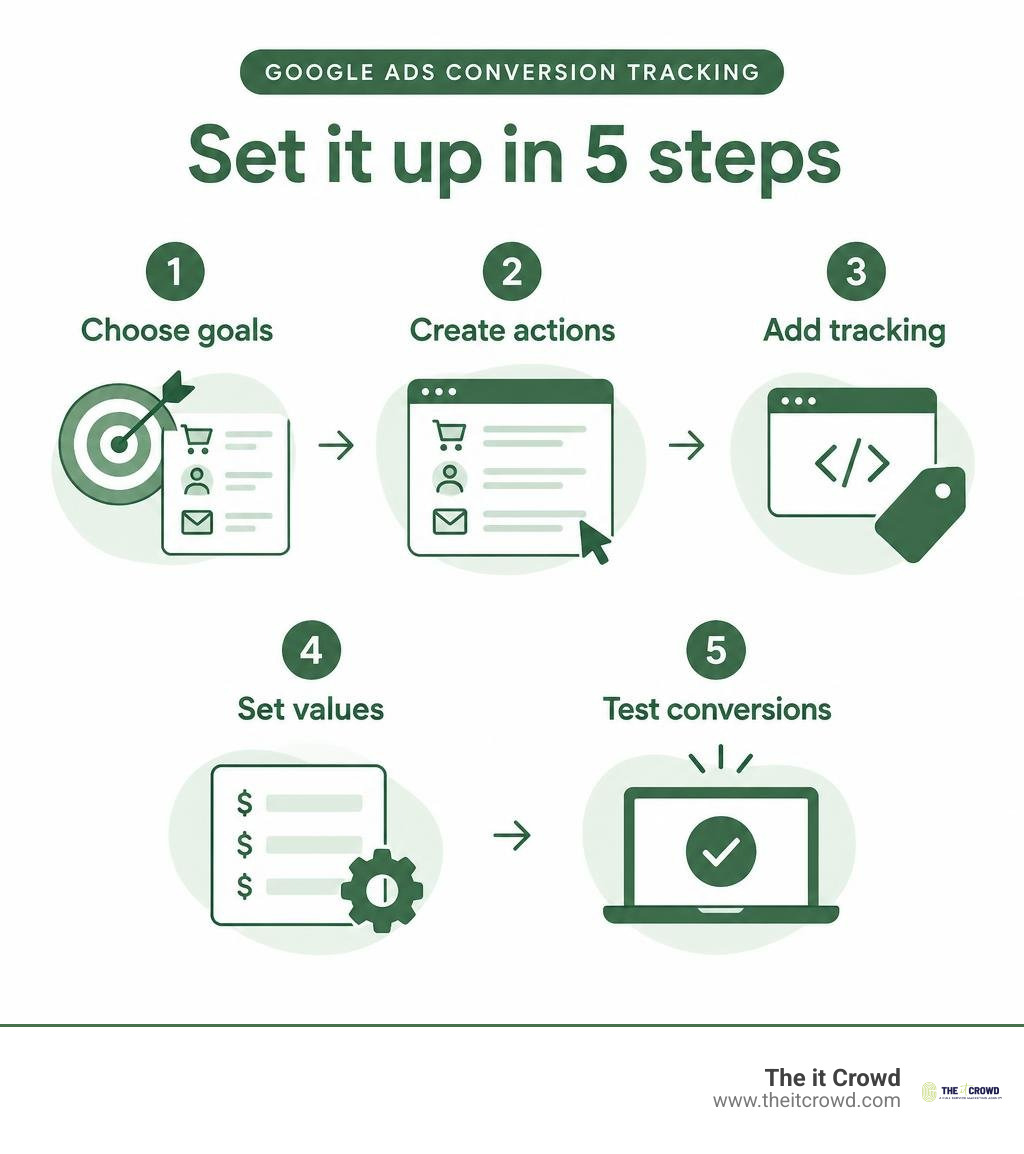
Google Ads conversion tracking: Set it up in 5 steps
Use this process to connect valuable customer actions to your advertising. Google’s web conversion setup guide explains the available setup paths, while its guide to different conversion tracking methods can help you choose which actions to measure.

Step 1: Define your conversion goals and actions
Start by deciding what outcomes matter to your business. Common actions include a purchase, lead form submission, newsletter sign-up, phone call, app install, or completed appointment booking on a partner platform. You can also measure eligible local actions, such as visits to a physical store, and offline sales that happen after an ad interaction.
Separate high-value outcomes, often called macro-conversions, from smaller steps that indicate interest, or micro-conversions. A completed purchase may be a macro-conversion; an add-to-cart or brochure download may be a micro-conversion. Tracking both can help you understand the path to a sale, but they should not necessarily carry equal weight in bidding.
Create a distinct conversion action for each meaningful action you want to measure. Then group related actions into conversion goals and decide which ones should appear in the account’s main Conversions reporting column. For example, a sales campaign might use purchases as its primary goal and add-to-cart events for observation.
Align the conversion actions with your PPC campaign goals. Clear goals make it easier to interpret results and avoid optimizing campaigns toward activity that does not support your business.
Step 2: Choose Google Ads tagging or GA4 imports
For website actions, you can measure conversions directly with the Google tag or import eligible events from a linked Google Analytics 4 (GA4) property. Both approaches can be useful; choose based on how your events are managed and which conversion signals you want Google Ads to use.
| Setup method | How it works | Considerations |
|---|---|---|
| Google tag | Sends website conversion events directly to Google Ads, often with a Google Tag Manager setup. | Gives you a direct Ads measurement signal and supports conversion-specific values and settings. |
| GA4 import | Imports eligible GA4 events that are marked as key events into Google Ads. | Reuses existing analytics events, but requires linked accounts and the right permissions. Allow time for imports and reporting to update. |
To import GA4 events, make sure the correct property is linked, you have Admin access in Google Ads and Edit access in GA4, and the event is marked as a key event. After linking accounts or changing event eligibility, it can take 24 to 48 hours for import options to appear.
Enable auto-tagging in Google Ads so ad click information can be passed to your site. For more on the role of click identifiers and website tags, see how Google Ads tracks website conversions.
Step 3: Install Google Ads conversion tracking with Google Tag Manager
Google Tag Manager (GTM) lets you manage tags and decide when they fire without adding each tag directly to your site code. Before you begin, confirm that your GTM container is installed and that you know which event signals a completed action.
A typical website setup looks like this:
- In Google Ads, create a website conversion action and choose the appropriate category.
- Select the Google Tag Manager setup option and note the Conversion ID and Conversion label. The ID identifies the Ads account; the label identifies the conversion action.
- In GTM, create a Google Ads Conversion Tracking tag. Add the ID and label, then assign a trigger that matches the action.
- Choose the right trigger. A confirmation page may use a page-view trigger; a form submission or purchase event may use a custom-event trigger.
- Preview the container, complete a test action, confirm the tag fires once, then publish your changes.
A data layer event can provide a more reliable trigger than a button click, especially when a form submission or purchase is confirmed asynchronously. For purchases, pass the conversion value, currency, and a unique transaction ID when available.

The Conversion Linker helps preserve ad click information in first-party cookies on your domain so it can be associated with a later conversion. In GTM, a Conversion Linker tag is commonly set to fire on all pages. If your site already has a correctly configured Google tag that handles linking, a separate linker tag may not be necessary. Check your implementation and avoid duplicate or conflicting tags. Google’s conversion measurement documentation covers tag-based setups.
Step 4: Configure conversion settings and values
Conversion settings determine how actions are counted and whether they guide bidding. Review each action’s settings rather than assuming the defaults fit your business.
| Setting | Primary action | Secondary action |
|---|---|---|
| Use in Smart Bidding | Yes, when included in the campaign’s goals | No; generally for observation |
| Main purpose | Optimize toward a business outcome | Provide additional reporting insight |
| Example | Completed purchase or qualified lead | Product view or add-to-cart |
A primary action can be used by Smart Bidding when it is included in the campaign’s goals. A secondary action is generally observation-only and is reported in All conversions, rather than used as a bidding target. Check account-default and campaign-specific goals so you do not accidentally ask bidding to optimize for the wrong action.
Set the counting method to match the action. Every is usually appropriate for purchases, where multiple orders after an ad interaction matter. One is often more suitable for leads, where repeated form submissions by the same person should not be counted as separate new customers.
For sales, pass the actual transaction value and currency instead of a fixed value when possible. Include a unique transaction ID to reduce duplicate purchase counts, such as when a customer reloads a confirmation page. Dynamic values can be sent through GTM variables or retrieved from the page when the conversion tag fires.
Also review the conversion window and attribution model. The click-through window sets how long after an ad interaction a conversion can be credited; engaged-view and view-through windows apply to eligible video or impression interactions. Data-driven attribution distributes credit across eligible interactions, while last click assigns credit to the final eligible interaction. Availability can vary by conversion type and account settings.
A thoughtful measurement plan is part of broader digital strategy and analytics, not just a tag installation.
Step 5: Test tags and enable enhanced conversions
Use GTM Preview and Google Tag Assistant to check that the correct tag fires on the intended event, with the right conversion ID, label, value, and currency. Test the full journey, including form errors or checkout steps, so an incomplete action is not recorded as a success.
Enhanced conversions can improve measurement by sending eligible first-party information, such as an email address or phone number, in a hashed form for matching. Hashing helps protect the data during matching, but it does not replace your obligation to explain data collection and obtain consent where required. Only send information you are authorized to use, and follow Google’s policies and applicable privacy requirements.
Consent Mode communicates a user’s consent choices to Google tags and adjusts tag behavior accordingly. Configure it with your consent management approach, particularly where consent requirements apply, including the EEA, UK, and Switzerland.
For some sites, server-side GTM can move parts of tag processing from the browser to a server container, reducing the amount of tag code running on the page. It requires additional setup and does not automatically fix poor event design or consent issues. Validate the server-side events and remove equivalent browser-side conversion tags once the new setup works, to prevent duplicates.
Reliable measurement also depends on a well-built site. Our technical site optimization work can help address implementation issues that interfere with tags and page performance.
Troubleshoot Google Ads conversion tracking and expand measurement
If conversions are missing or unexpectedly low, check the implementation in this order:
- Tag does not fire: Use GTM Preview and Tag Assistant to confirm the trigger happens on the intended event. Check that the GTM container is published and that the event name matches exactly.
- Wrong conversion action: Recheck the Conversion ID and label in the GTM tag. Confirm that the trigger is not firing on a page view or click that happens before the action is complete.
- Unverified or inactive status: A new action may not show activity until Google detects a valid event. Tag status can take time to update after changes. Use Tag Assistant to test implementation; status alone does not prove that an ad interaction was attributed.
- Duplicates or inflated counts: Check for repeated tags, overlapping triggers, third-party plugins, and confirmation pages that can be reloaded. Use a unique transaction ID for purchases.
- Lower totals than expected: Google Ads and GA4 may use different attribution settings, time zones, counting methods, or reporting windows. Ad blockers, browser restrictions, consent choices, and cross-domain journeys can also affect what is observed. View-through conversions are not included in the main Conversions column; check All conversions for additional reporting.
- Click information is lost: Confirm auto-tagging is enabled and that redirects or click trackers preserve the GCLID. For journeys that cross domains, configure cross-domain measurement so the click information is carried through.
- Offline conversions are delayed or rejected: Check the Diagnostics details and ensure the conversion action source and uploaded fields are correct. An imported GCLID must be within 90 days to be valid, and offline imports can take 24 to 48 hours to process.
After a major change to conversion goals or behavior, give Smart Bidding one to two conversion cycles to adjust before judging the results. Continue reviewing tag health and reporting as your site changes. Ongoing website optimization can support a smoother path from ad click to completed action.
Frequently asked questions about Google Ads conversion tracking
What conversion types can Google Ads track?
Depending on the setup, you can track website purchases, form submissions and sign-ups; app installs and in-app actions; phone calls from ads or a website; offline sales; and eligible local actions such as store visits. You can also measure partner bookings completed on another platform. Each distinct action should have a conversion action configured for its source.
How long does it take for conversions to appear?
Timing depends on the setup. GA4 import options may take 24 to 48 hours to appear after linking accounts or marking an event as a key event. Offline uploads also take about 24 to 48 hours to process. Tag status and attributed conversion reporting may take time to update, so test the tag first and allow for reporting delays before assuming the setup has failed.
Can I run Google Ads without conversion tracking?
Yes. You can run campaigns focused on traffic and measure interactions such as clicks, but you will have less information about which ads lead to purchases or leads. Without suitable conversion data, Smart Bidding strategies that optimize for conversions or conversion value cannot use those actions as intended.
Conclusion
Start with the business outcomes you want to measure, then choose a data source, implement and configure the tags, and test the complete conversion journey. Keep checking for duplicate events, consent issues, and changes to your site so your reports remain useful for campaign decisions.
At The it Crowd, we connect paid media with broader marketing needs. If you need integrated digital marketing support, we can help you build a measurement approach that supports your business goals.

