Perfectly set up Google Search Console for the first time, and to connect it with the Yoast SEO WordPress plugin.
Goal: To set up Google Search Console for the first time, and to connect it with the Yoast SEO WordPress plugin.
Ideal Outcome: Your Google Search Console property has been verified, and you are able to check if there were any crawl issues for your site recently, straight in your WordPress Admin.
Why this is important: Google Search Console is a free tool that allows you to monitor your website’s performance in Google search. It allows you to collect statistics about your rankings, optimize visibility, and it’s your main channel of communication with Google, allowing you to monitor potential penalties, or identify crawling errors before they affect your rankings.
Where this is done In Google Search Console, and your WordPress admin.
When this is done: Only once per domain. You will need to do it every time you create a subdomain, or add a new protocol (for example, If you migrate to https://)
Who does this: The person responsible for Website management, analytics, or SEO.
Prerequisites or requirements: You need to have SOP 004: Add Google Tag Manager to a WordPress Site (web version) and the SOP 008: Initial WordPress setup (web version) to follow this SOP.
Signing up for Google Search console and verifying your domain
01▸ Go to https://search.google.com/search-console/ Log in with your Google Account;
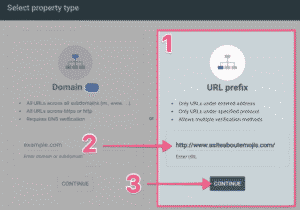
02▸ You will be taken to a welcome page and prompted to “Select a property type”. It is recommended to select “URL prefix”.
Note: Make sure your URL is exactly as it appears in the URL bar including the protocol (http:// or https://) and the subdomain (www. or non-www., or any other subdomain you might be using).
If your website supports multiple protocols and subdomains you will want to add them all to Search Console since the tool will treat each of them separately.
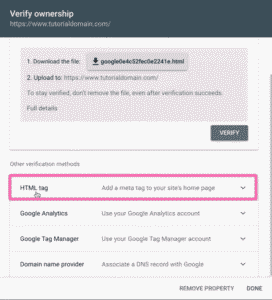
03▸ First, you’ll need to scroll down and copy your “HTML tag” before verifying with Google Tag Manager.
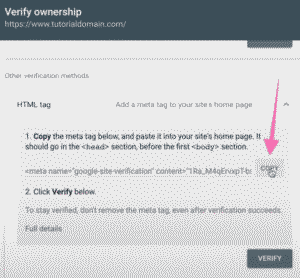
04▸ Click on the “Copy” button. You will need this to connect the Google Search Console with your WordPress website later.
05▸ Next, there are multiple ways to authenticate your account. If you are already using Google Analytics or Google Tag Manager, these 2 methods will be the fastest and easiest methods to authenticate. If not, the recommended method is the fastest one to use. This SOP assumes you already have Google Tag Manager running on your website.
If you don’t have Google Tag Manager yet, you can follow SOP 004: Add Google Tag Manager to a WordPress Site (web version) first.
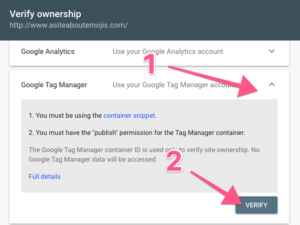
06▸ Select “Google Tag Manager”, and click “Verify”.
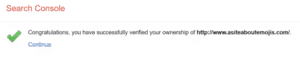
07▸ That’s it! You should now see a success message, click “Continue” and you will be taken to your Search Console dashboard.
Connect Search Console with Yoast SEO WordPress Plugin
01▸ Open your WordPress Admin Dashboard.
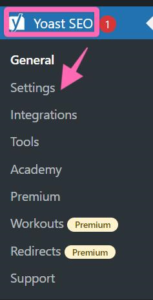
02▸ On the sidebar, hover over “Yoast SEO”, and click “Settings”
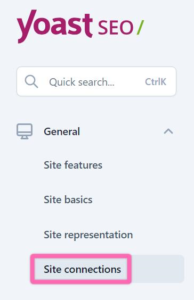
03▸ Next, click on “Site connections”
04▸ Under “Google”, click on the “Google Search Console” hyperlink.
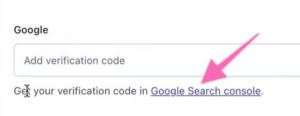
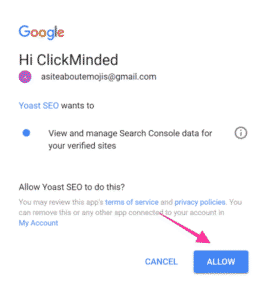
05▸ Select your Google Account and log in.
06▸ Click “Allow”
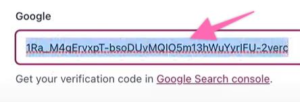
07▸ Paste the HTML tag that you have previously copied when verifying your website ownership with Google Search Console and then click “Save changes”.
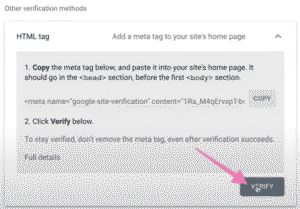
08▸ Go back to your Google Search console browser and click “Verify” under “HTML tag”. This should take a few minutes.
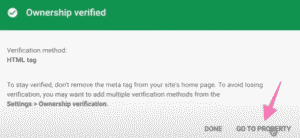
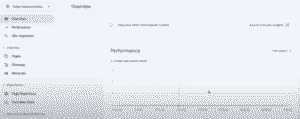
09▸ And that’s it! The ownership is now verified. Click “GO TO PROPERTY” to view your site’s performances.
10▸ In addition, you will now be able to retrieve all the crawl issues for your site straight from your WordPress Admin panel.